
9.9.1. Overview
Administration menu 🠆 Extensions 🠆 SmartEvidence 🠆 Management
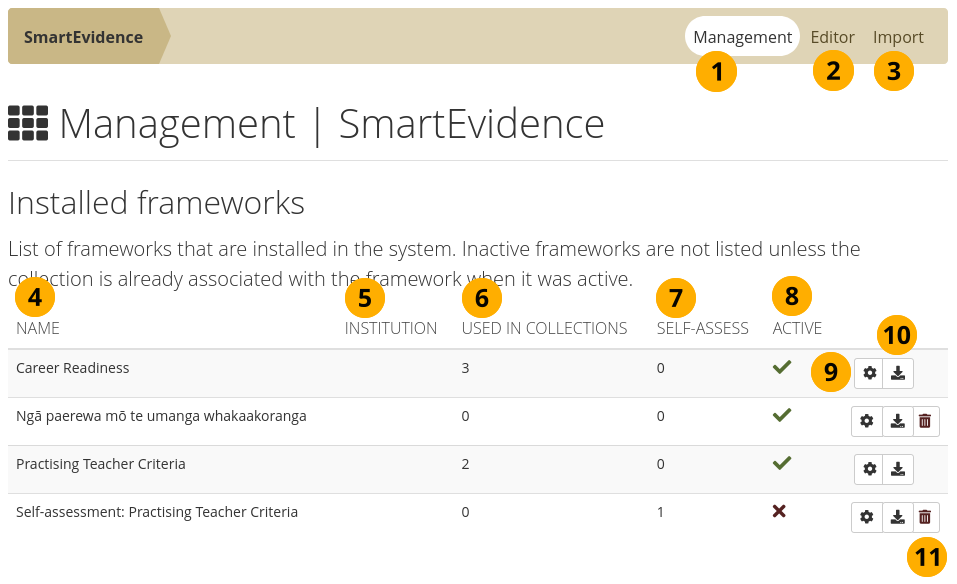
Overview of the installed SmartEvidence frameworks
Select the Management link to be taken to this overview page if you are on another page within the SmartEvidence section.
Select the Editor link to create a new framework, edit, or copy an existing one.
Select the Import link to upload a SmartEvidence file created outside of Mahara.
Name: Displays the name of the framework.
Institution: Show the institution in which this framework can be used if it is restricted to a particular institution.
Used in collections: Shows how many times the framework has been used.
Self-assess: Indicates whether the framework allows self-assessment or not.
Active A green checkmark check indicates when a framework can be used by people on the site. A red cross close indicates that the framework is not available any more for new collections.
Select the Manage button to change settings for a framework.
Select the Download button to save a framework to your device. This allows you to upload it to another Mahara site.
Select the Delete button if you want to remove a framework. You can only remove frameworks that are not in use.
Note
Mahara comes with three competency frameworks pre-installed to make testing easier. You can delete them if you do not want people to work with them.