
3.6. People
Main menu 🠆 Engage 🠆 People
Your friends are a special group of people. You can share your portfolio pages or collections with them and get in touch with them quickly. They differ from a regular group in that they do not have discussion forums, pages, or shared files. If you want to use those with your friends, you have to create a group for them.
You can request other people’s friendship in a couple of ways:
Go to their profile page and select the Request friendship or Add to friends button.
Go to the People page and search for potential friends.
3.6.1. People overview page
Find people, send messages, add friends all in one central place.
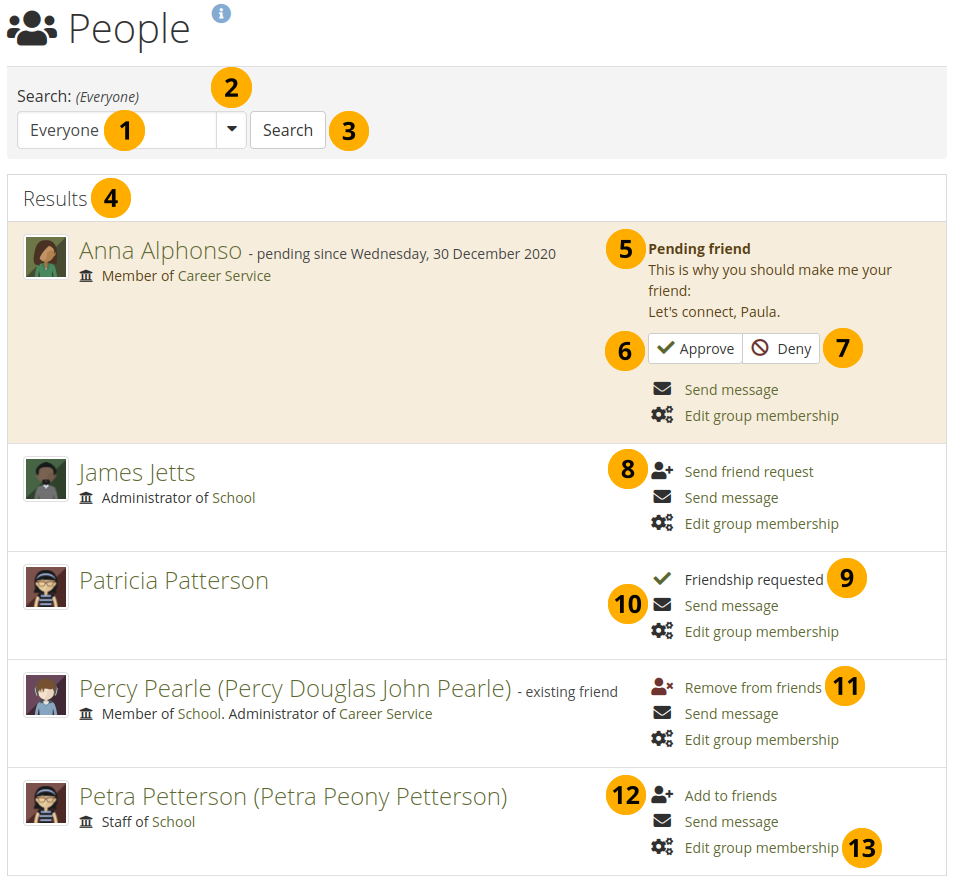
The ‘People’ page
Use the search box to search for a name of a person.
If there are lots of people, you can narrow down your search by selecting from the drop-down menu:
Everyone
My institutions: This is the default option for members in an institution.
Friends
Friend requests
Select the Search button to start your search.
All results are listed. You can select on the name to view that person’s profile page. You also see if a person is already a friend of yours, if they are an administrator or staff member, and in which institution they are.
Note
When you select on the institution name that is listed for a friend, you see a list of institution staff, institution support administrators, and institution administrators. You can contact them directly from this page by selecting on the Send message button.
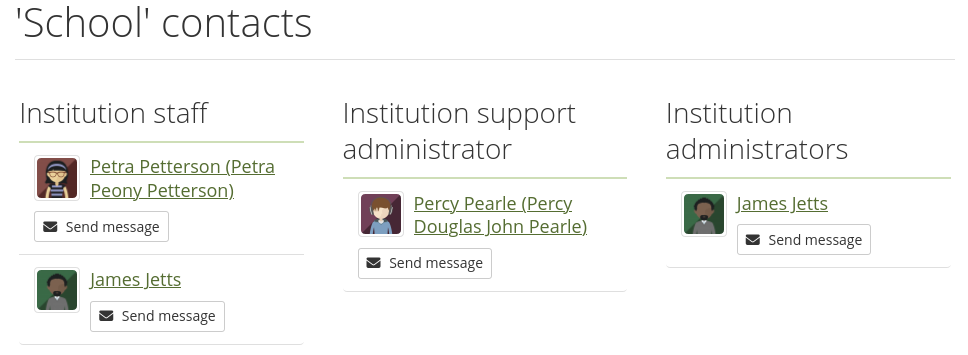
The institution membership is only visible if your site administrator set up multiple institutions on Mahara. People on a site with multiple institutions who do not have one displayed do not belong to any institution.
If somebody sent you a friend request, you can see the details, including their reason for wanting to add you to their friends.
Note
You can prevent others from sending you messages or friend requests if you disabled these options in your account settings.
Select the Approve button to add that person as a friend.
Select the Deny button to cancel the friend request.
Select the Send friend request link if you want to request friendship of somebody else.
Note
You do not need to request the friendship of others in order to see their portfolio pages or collections. Access permissions are independent of being friends on Mahara.
Select the Add to friends link if the person accepts friend requests automatically.
Select the Send message link when you want to send a person a message via Mahara. This is only possible if the person allowed that. You can change your personal settings for messages from other people in your account settings.
If you requested friendship of somebody, the information ‘Friendship requested’ is displayed. When you filter for ‘Friend requests’, both your requests as well as those of others are shown.
Select the Remove from friends link if you do not want to have the person as your friend on Mahara.
Select the Edit group membership link if you are the administrator of a group and you want to invite or add them to a group or change their status in one of your groups.
Note
As administrator, you also see the Masquerade option for each person you are allowed to masquerade.

3.6.1.1. Send a friend request
You can send a friend request from the People page by selecting the Send friend request link next to the person you want to be friends with.
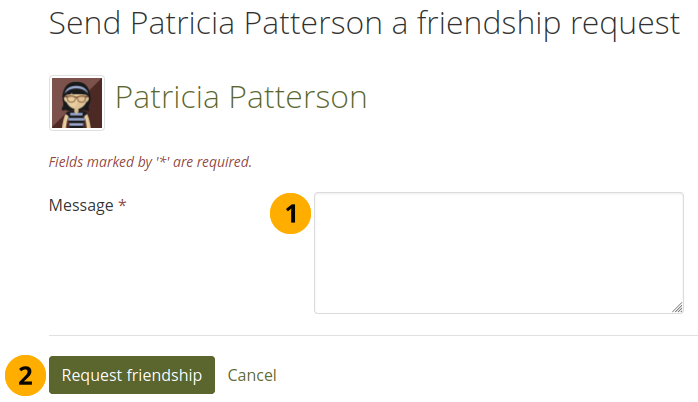
Send friend request
Give a reason why want to request friendship with this person. This reason can be important if the other person does not know you well and thus may likely reject your request. This field is required.
Note
Your message cannot be longer than 255 characters.
Select the Request friendship button to send off your friend request or select Cancel to abort your action.
Note
You do not need to request the friendship of others in order to see their portfolio pages or collections. Access permissions are independent of being friends on Mahara.
3.6.1.2. Accept a friend request
When another person has requested friendship, you receive a notification which is shown in the login box.
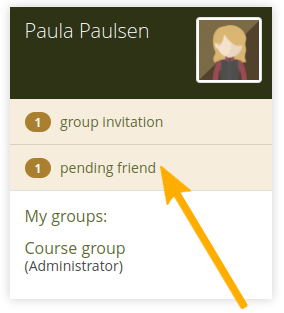
Pending friend request
When you select on the friend request, you are taken to the People page. All your pending friend requests are shown.
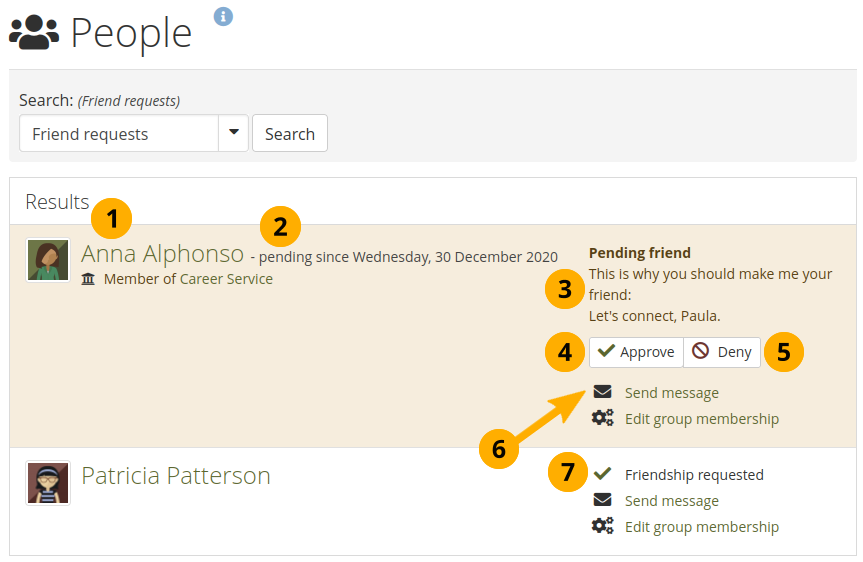
View all your pending friend requests
View the name of the person requesting friendship and a short description if they had written one in Account menu 🠆 Profile 🠆 Introduction. You can select on their name and view their profile page.
You see when this person requested your friendship.
Read why this person requests friendship if they provided a reason.
Select the Approve button to approve the friend request. You become friends immediately.
Select the Deny button to deny friendship.
Select the Send message button to communicate with the person before making a decision about this friend request.
If you requested friendship, you see the ‘Friendship requested’ information.
3.6.1.3. Deny a friend request
When somebody sent you a friend request, go to the People page to view your pending requests. You can filter the search list by ‘Friend requests’ to only show these and not everyone that you can view.
Next to the person whose request you wish to deny, select the Deny button.
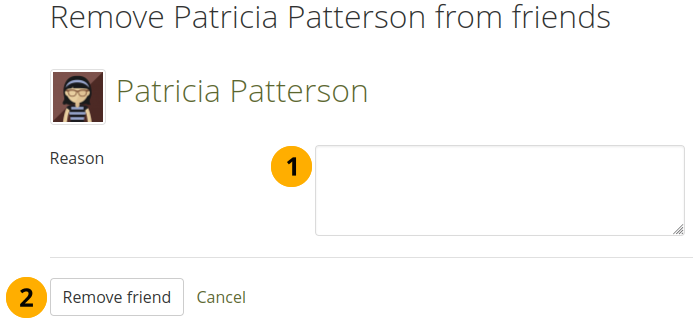
Deny a friend request
Provide a reason for your denial if you want to give one.
Select the Deny friend request button to send your message or select Cancel to abort your action.
The person receives a notification which includes your reason for denial if you provided one.
3.6.2. Remove a friend
You can remove a friend from your friends list. Removing a friend can mean that they do not have access to certain portfolios of yours any more. For example, if you shared your portfolios with ‘Friends’, they will not see them any more. If you shared a portfolio directly with this one former friend, they’ll still be able to view it.
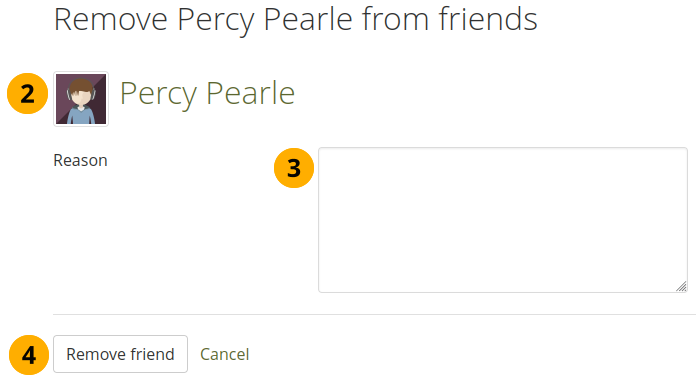
Remove a friend
Select the Remove from friends link on Main menu 🠆 Engage 🠆 People next to the friend you want to remove. On the next page…
Verify that you have the correct person.
Provide a reason for removing them from your list of friends. This information is optional.
Select the Remove friend button to finalize your action or select Cancel to abort the removal.