
19.6. Insert an accordion into text
 The visual editor allows you to insert an accordion into text. That makes it possible to show only a heading and then more text within a larger text.
This can be useful if you have longer instructions or want to have one set of instructions with different details for various options.
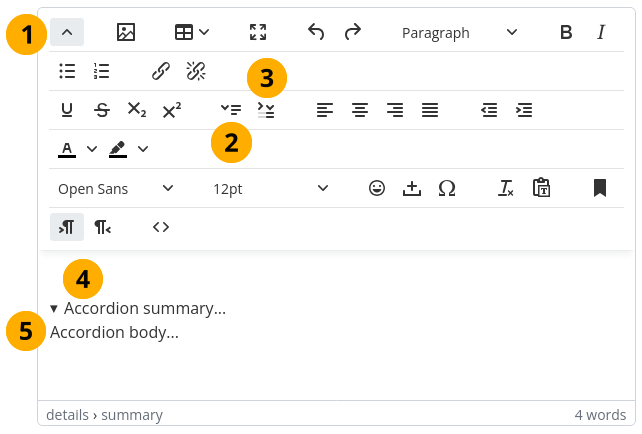
Insert an accordion into your text
Select the Toggle toolbars icon
 to show all toolbars.
Select the Insert accordion icon
 at the cursor position in the text window to add an accordion.
Note
It is best to write a word that should show below the accordion so you can easily continue writing. Otherwise, you might need to enter it in the source code because it can be tricky to get out of the accordion.
Select the Toggle accordion icon
 to collapse the accordion and only show its title.
Accordion summary: Write the text that is displayed when the accordion is collapsed. This text should be a short one line.
Accordion body: Write the details. You can use standard HTML, including lists.
When you view your text with the accordion, you only see the summary at first. Select the summary next to the little triangle to expand the accordion to see all details.
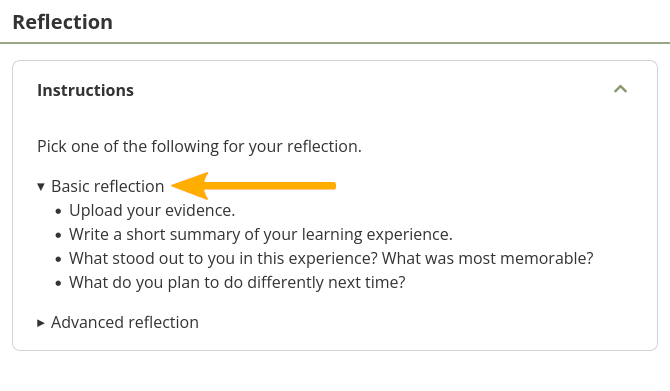
View and interact with an accordion in your text