
19.8. Install Mahara in a language other than English
If you want to set up a Mahara site for a community who’s main language is not English, it can be beneficial not to install Mahara in English, but use a different language pack as basis to read text in your selected language, including:
the installation page and potential error messages
default text, e.g. on the dashboard page
If you have the language pack installed for your preferred language and your browsing language is set to that language, Mahara picks it up automatically and installs your site in that language.
19.8.1. Chrome
In Google Chrome, set your preferred language with the following steps.
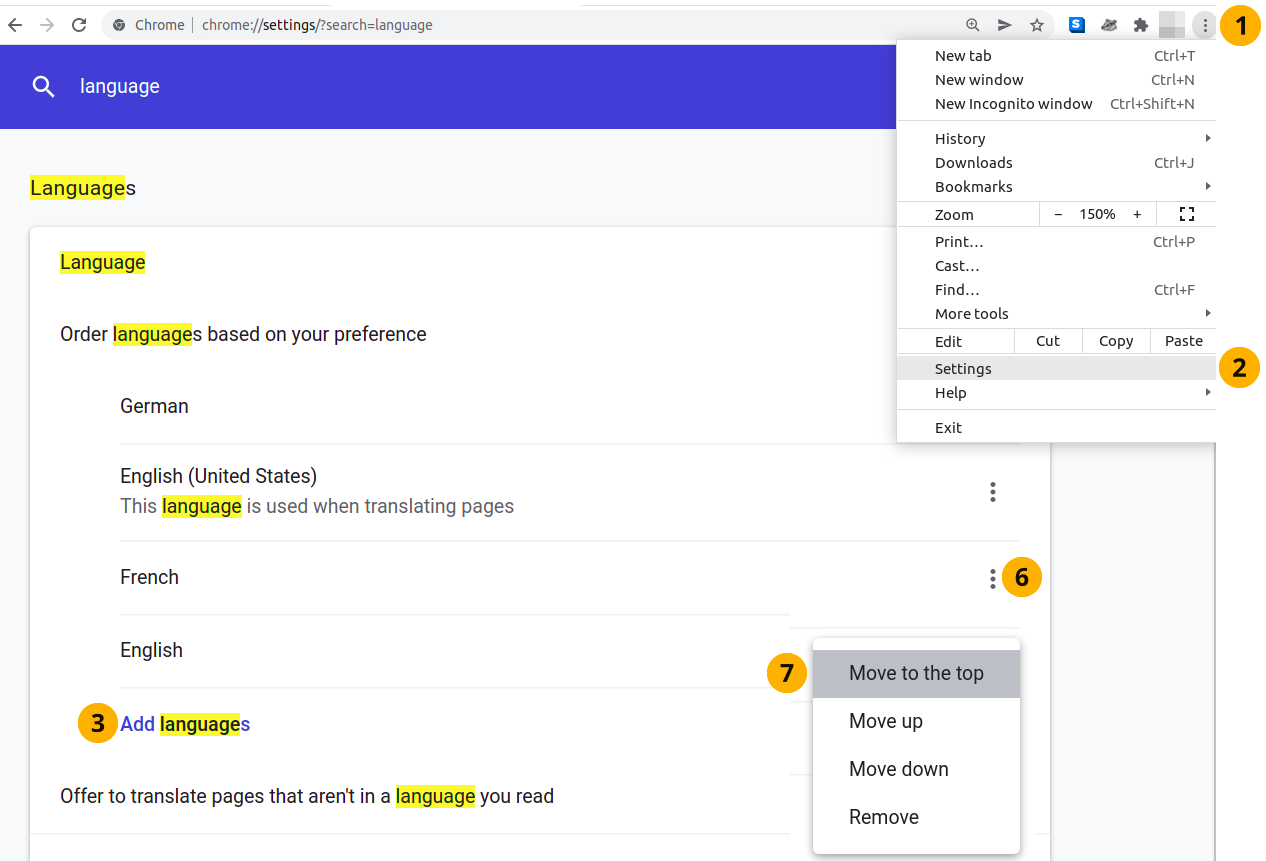
Set your browsing language in Chrome
Select the Open and customize Google Chrome icon.
In the search bar at the top, type ‘Language’. The search results are highlighted.
Select the Add languages link.
Search or browse to the language that you want to add and select its checkbox.
Select the Add button. You are returned to the settings screen.
Select the More actions icon next to the language that you want to make your primary language.
Select the option Move to the top. Your changes are saved immediately.
19.8.2. Firefox
In Mozilla Firefox, the following steps allow you to set your browsing language.
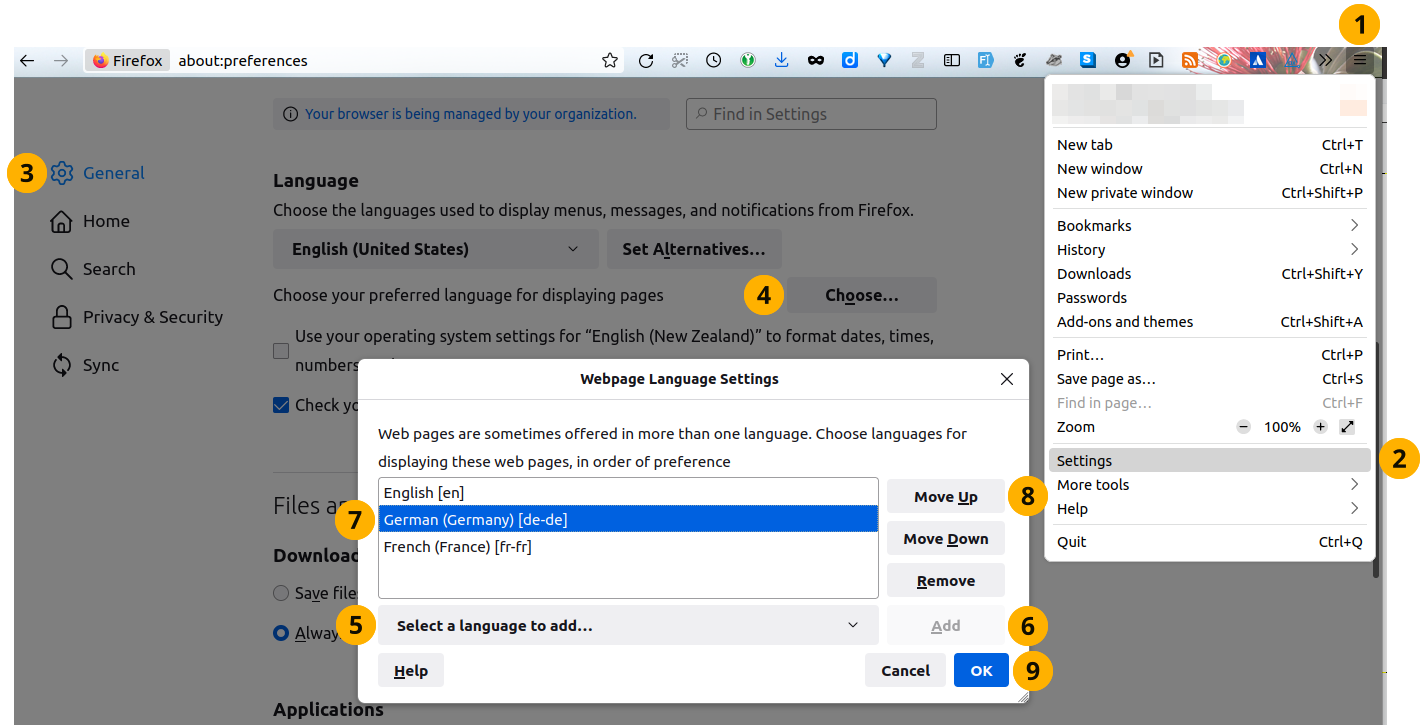
Set your browsing language in Firefox
Select the Open Application Menu icon.
Select Settings.
On the ‘General’ page, scroll to the section ‘Language’.
For the option ‘Choose your preferred language for displaying pages’, select the button Choose….
Select the drop-down menu Select a language to add… and select your language.
Select the Add button to add your language to the list of languages.
Highlight your language and select the Move up button until your language is at the top of the list.
Select the OK button to save your changes.