
19.2. Record audio and video
Warning
This is an experimental feature that is not available in all browsers. Only Google Chrome, Mozilla Firefox, and Opera support the technology to record audio and video directly from within your visual editor.
 You can record audio wherever you see the visual editor if the site administrator allowed audio and video recordings.
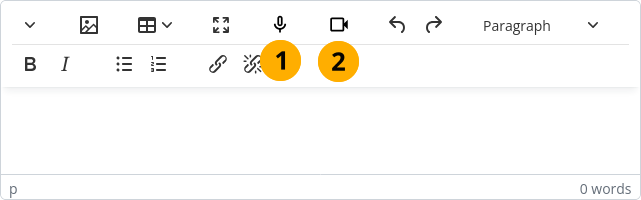
Audio and video capture buttons in the editor
Select the Insert audio icon
 to record audio.
Select the Insert video icon
 to capture a short video.
Note
Audio recordings require less storage space.
19.2.1. Add recording
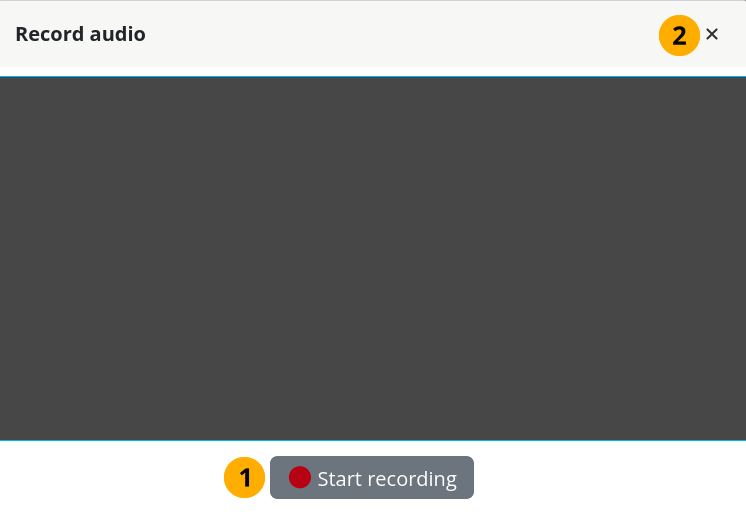
Start a recording
Once you selected the audio or video capture icon, you can start your recording.
Select the Start recording button.
Alternatively, if you don’t want to record anything any more, select the Close icon close.
In most cases, you are then asked to select your microphone (and camera if you want to record a video).
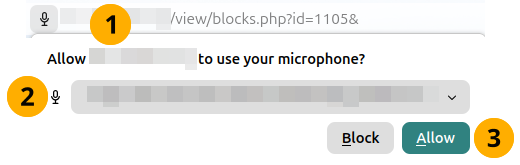
Allow to use your microphone (and camera)
The domain of your Mahara site is mentioned as a safeguard so you know that you are recording on the correct site.
Select the microphone (and camera) that you want to use for the recording. Typically, your built-in devices are selected, but if you have an external device connected, you can select that.
Select the Allow button to confim your choice.
You know the device selection was correct when you see a waveform for the audio recording or your camera for the video recording.
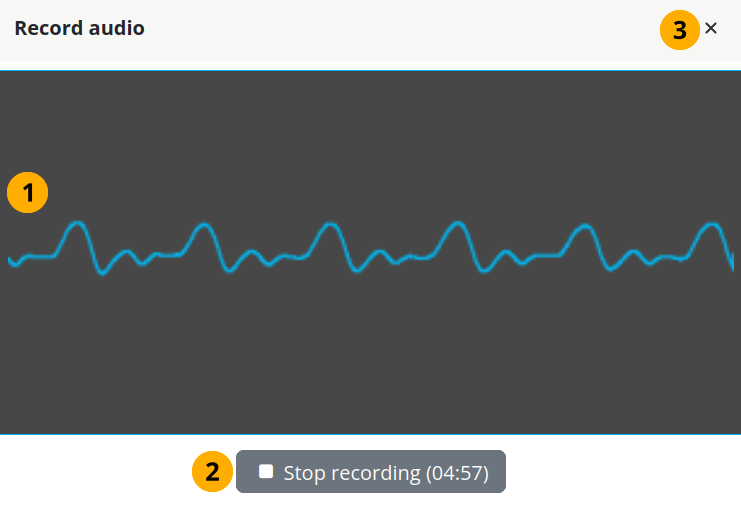
Stop the recording
The preview window shows a waveform when you record audio or the image from your camera during a video recording.
Select the Stop recording button to finish your recording.
Note
The button displays a countdown timer to show how much time you have left in this recording. Typically, the display is in minutes and seconds.
Select the Close icon close to abort the recording and close the modal.
Decide whether you want to add the recording to your page.
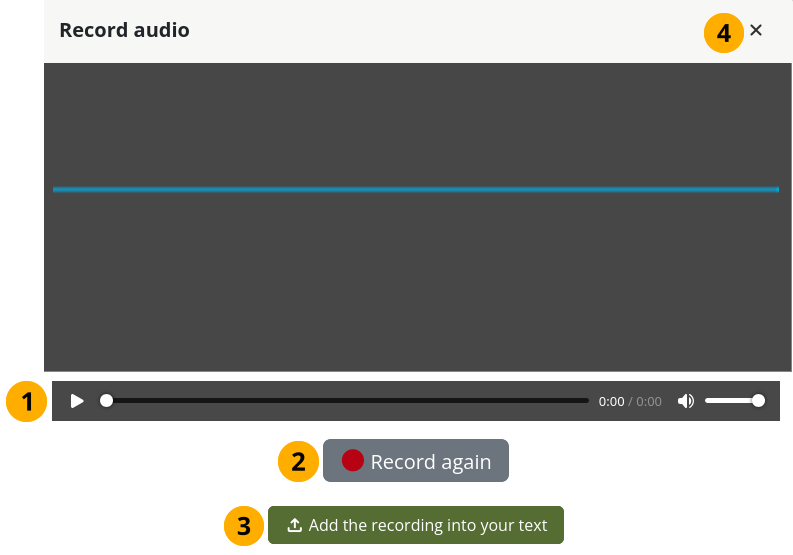
Save the recording
Some browsers allow you to listen to or watch the recording in the preview.
If you are not satisfied with your recording, select the Record again button to give it another go.
Select the Add the recording into your text button to insert the clip into your text.
Note
Only when you add the recording into your text is the file saved in your Files area in the folder ‘media-recordings’. You can then use the file in other portfolios like any other regular file.
Select the Close icon close to abort your action.
Add more text or change the name of the linked file.
19.2.2. Listen to and view a recording
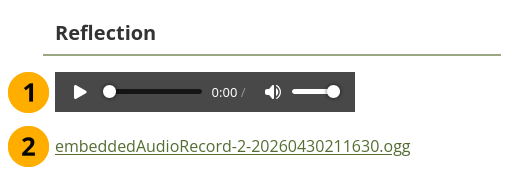
View and play the recording
Select the Play icon in the player to start the recording.
Select the link to download the file.
Note
Change the title of the link to give it a more meaningful name.