
5.1.5. External content
With the help of the external content sections, you can include RSS feeds, external media or GoogleApps documents etc. into a page.
5.1.5.1. External feed
rss_feed
Embed an external RSS or ATOM feed, e.g. to display an external blog.
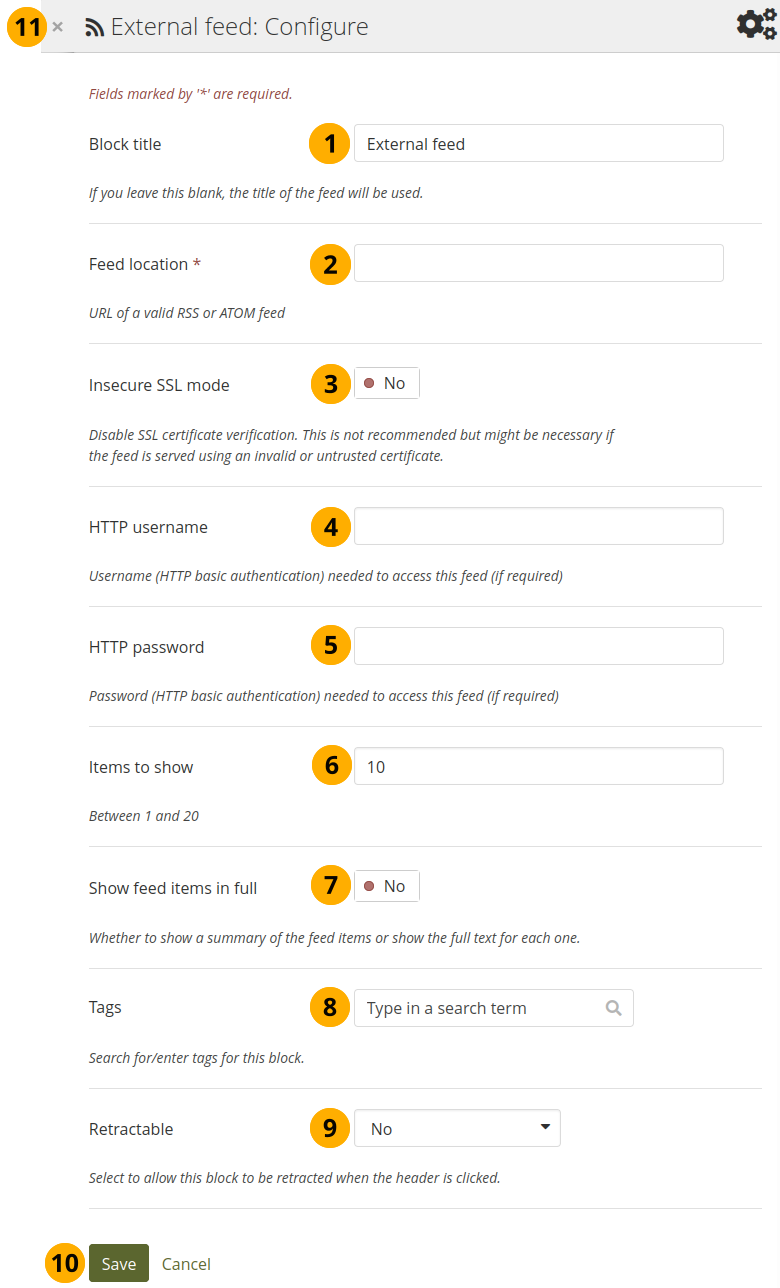
Configure the external feed section
Section title: If you leave the title blank, the title of the feed will be used.
Feed location: Put the entire feed URL from a valid RSS or ATOM feed in here. If the feed is not displayed, try to view it in a regular feed reader to make sure that the URL is correct. You must provide a feed URL here.
Note
Unfortunately, Firefox and Chrome do not display the RSS feed icon for a page immediately near the address bar any more. In Firefox you will have to go to View 🠆 Toolbars 🠆 Customize and then drag the RSS icon to your toolbar. It lights up orange / white when a feed is available.
If you use Chrome, you will have to install the RSS Subscription Extension.
Insecure SSL mode: Switch this option to ‘Yes’ if you wish to enable the insecure SSL mode. This mode allows you to override certificate errors generated by a feed.
HTTP username: Provide a username if you wish to access a feed that requires authentication. This is the username to access the feed and not your portfolio system.
HTTP password: Provide a password to access a feed that requires authentication. This is the password to access the feed and not your portfolio system.
Items to show: Decide how many of the latest items in the feed you wish to display. You can choose up to 20.
Show feed items in full: Switch this option to ‘Yes’ if you want to see the entire feed content and not only the heading of a blog post.
Tags: Enter tags for this section to find this content more easily. The tags are displayed as part of the page tags.
Collapse content: Choose whether you want to allow viewers to only display the heading of th section on a page. The options are:
No: The section and its content is displayed at all times.
Yes: Allow viewers to reduce the section to just the heading by selecting the Collapse icon keyboard_arrow_up.
Automatically collapsed: Only the heading of the section is visible, and the viewer can select the Collapsed icon keyboard_arrow_down to view its content.
Select the Save button to accept your changes, or select Cancel to leave the section’s content as it is. Remove is shown only when you place the section into the page for the first time.
You can also select the Close icon close in the top right-hand corner of the modal window to remove a new section before it is saved or to cancel any changes and leave the section content as it is.
Note
If your feed is not updated automatically, please ask your site administrator to check the cron settings.
If you select an entry in the RSS feed, it will open in a new window.
5.1.5.2. External media
media_link
With this section you can embed content from a wide variety of third-party sites. The sites that are allowed are listed below the text area in the configuration screen. You see only their favicons, but when you hover over an icon with your mouse, you see the site’s name as well.
See also
Mahara comes with a number of sites that are allowed per default. These are listed on the page. Your site administrator can add additional iframe sources.
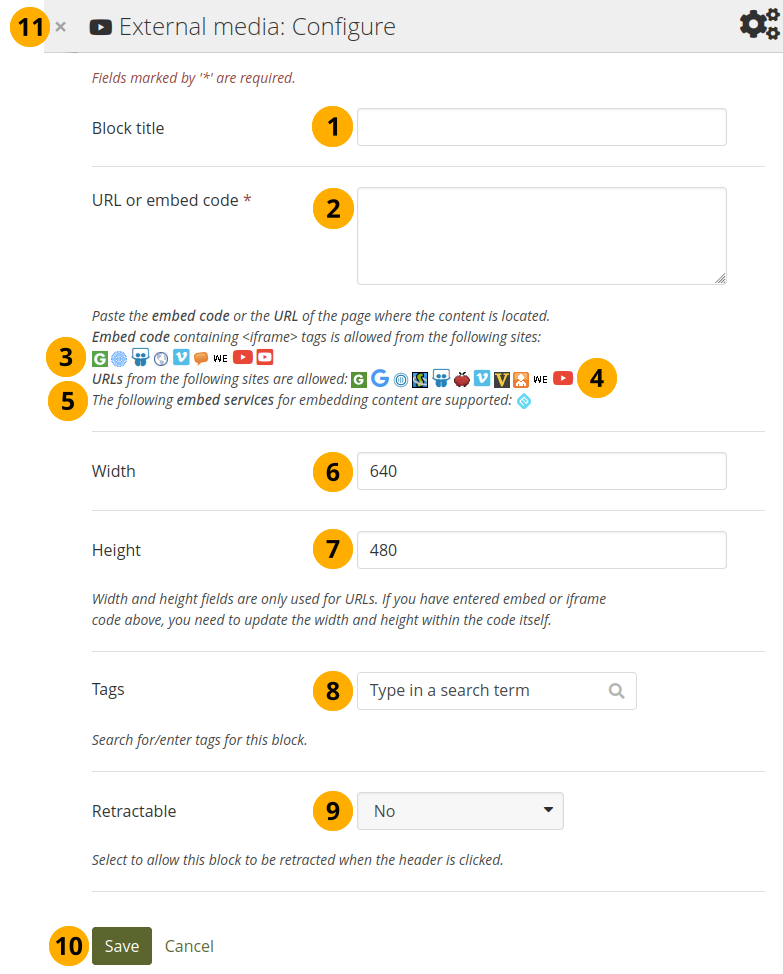
Configure the external media section
Section title: Choose a title for your embedded content.
URL or embed code: Paste the URL or the embed code of a page where the content is located.
Embed code: Content from the sites listed in this section can be embedded using the <iframe> embed code. Any new site that the site administrator allows will be added in alphabetical order. The default sites are:
URLs: Content from the sites listed in this section can be embedded by copying the page URLs where the content can be found. The default sites are:
See also
See the ‘Tips’ section for more information on embedding a reflective chat session with Riff.
You can also paste an Embedly embed code and display your content that way.
Width: Choose the width (in pixels) that the content should take up on the page. This only goes for the content for which you provided the URL.
Note
If you use the embed code, you need to provide the correct width and height directly in the embed code and can ignore this setting here.
Height: Choose the height (in pixels) that the content should take up on the page. This only goes for the content for which you provided the URL.
Note
If you use the embed code, you need to provide the correct width and height directly in the embed code and can ignore this setting here.
Tags: Enter tags for this section to find this content more easily. The tags are displayed as part of the page tags.
Collapse content: Choose whether you want to allow viewers to only display the heading of th section on a page. The options are:
No: The section and its content is displayed at all times.
Yes: Allow viewers to reduce the section to just the heading by selecting the Collapse icon keyboard_arrow_up.
Automatically collapsed: Only the heading of the section is visible, and the viewer can select the Collapsed icon keyboard_arrow_down to view its content.
Select the Save button to accept your changes, or select Cancel to leave the section’s content as it is. Remove is shown only when you place the section into the page for the first time.
You can also select the Close icon close in the top right-hand corner of the modal window to remove a new section before it is saved or to cancel any changes and leave the section content as it is.
Note
You can use the same iframe embed code around Mahara in notes, text and journal entries as well.
See also
Watch the video Saving a video from iPad to MyPortfolio if you want to see how you can embed a YouTube video into your Mahara portfolio using an iPad. You can use a similar work flow for adding YouTube videos also via Android or on your computer. ‘MyPortfolio’ is the name of a Mahara instance in New Zealand for schools.
5.1.5.3. Google Apps
apps
Embed any of the following content available via Google (Apps):
books
calendars
documents, spreadsheets, presentations
maps
You can only display the content, but not immediately edit documents, spreadsheets or presentations. You will have to be logged in to your Google (Apps) account to do so. You can use this section with a regular, personal Google account or if you have a Google Apps account via an institution, e.g. your school or university.
Note
If certain documents are restricted to a Google Apps domain or to specific people, a login screen is displayed.
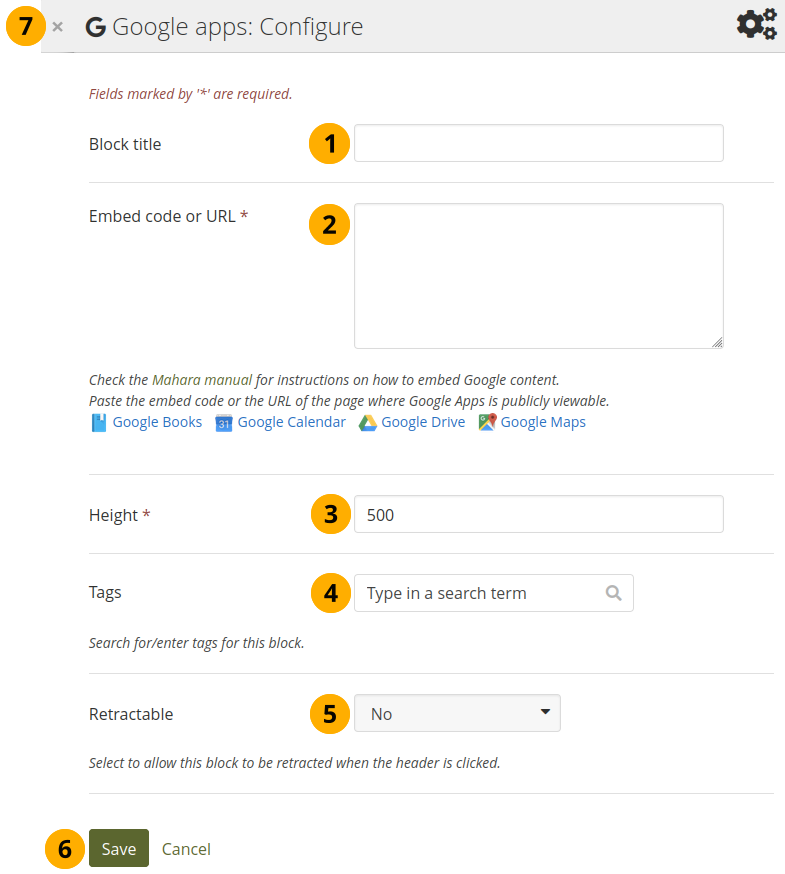
Configure the Google Apps section
Section title: Choose a title for your embedded content.
Embed code or URL: Depending on what kind of content you wish to display, you either provide the embed code or the URL. Select the Help button help for more information on how to embed each Google component.
Height: Choose the height for the embedded content. The width is adjusted to the column width of the section automatically.
Tags: Enter tags for this section to find this content more easily. The tags are displayed as part of the page tags.
Collapse content: Choose whether you want to allow viewers to only display the heading of th section on a page. The options are:
No: The section and its content is displayed at all times.
Yes: Allow viewers to reduce the section to just the heading by selecting the Collapse icon keyboard_arrow_up.
Automatically collapsed: Only the heading of the section is visible, and the viewer can select the Collapsed icon keyboard_arrow_down to view its content.
Select the Save button to accept your changes, or select Cancel to leave the section’s content as it is. Remove is shown only when you place the section into the page for the first time.
You can also select the Close icon close in the top right-hand corner of the modal window to remove a new section before it is saved or to cancel any changes and leave the section content as it is.
Google document
Open the document.
Select File in the menu bar and then Publish to the Web.
Select the Start publishing button.
Copy the document link or embed code.
Paste the link or embed code into the Embed code or URL box in the Google Apps section.
Google spreadsheet
Open the spreadsheet.
Select File in the menu bar and then Publish to the Web.
Select the Start publishing button.
Read through the other options and decide on them.
Copy the link for the option Web page or the embed code for the option HTML to embed in a page.
Paste the link or embed code into the Embed code or URL box in the Google Apps section.
Google presentation
Open the presentation.
Select File in the menu bar and then Publish to the Web.
Select the Start publishing button.
Copy the link or embed code.
Paste the link or embed code into the Embed code or URL box in the Google Apps section.
Google Drive folder
Select the folder that you want to share.
Select the Link icon. A shareable link is created.
Copy the link.
Paste the link into the Embed code or URL box in the Google Apps section.
Google Calendar
Open Google Calendar.
Select the little triangle next to the calendar that you wish to embed.
Select Calendar settings.
On the Calendar details tab scroll down to Embed This Calendar.
Customize the calendar appearance and then copy the embed code.
Paste the embed code into the Embed code or URL box in the Google Apps section.
Google Maps
Open Google Maps.
Select the My Places button.
Select the name of the map that you wish to embed.
Select the Link icon to the left of the map.
Customize the appearance of the map and copy the embed code.
Paste the embed code into the Embed code or URL box in the Google Apps section.
Note
Use steps 2 and 3 only if you wish to embed one of your Google maps. If you wish to embed any Google map, you can skip these steps.
Google Books
Open Google Books.
Find the book that you wish to embed.
Select the book title.
Select the Link icon above the book.
Copy the embed code of the book.
Paste the embed code into the Embed code or URL box in the Google Apps section.
Note
The link icon only appears if you are allowed to embed this book.
5.1.5.4. Badges
shield
Open Badges are an answer for showing recognition of skills and competencies online with the help of an open framework.
5.1.5.4.1. Configure the section
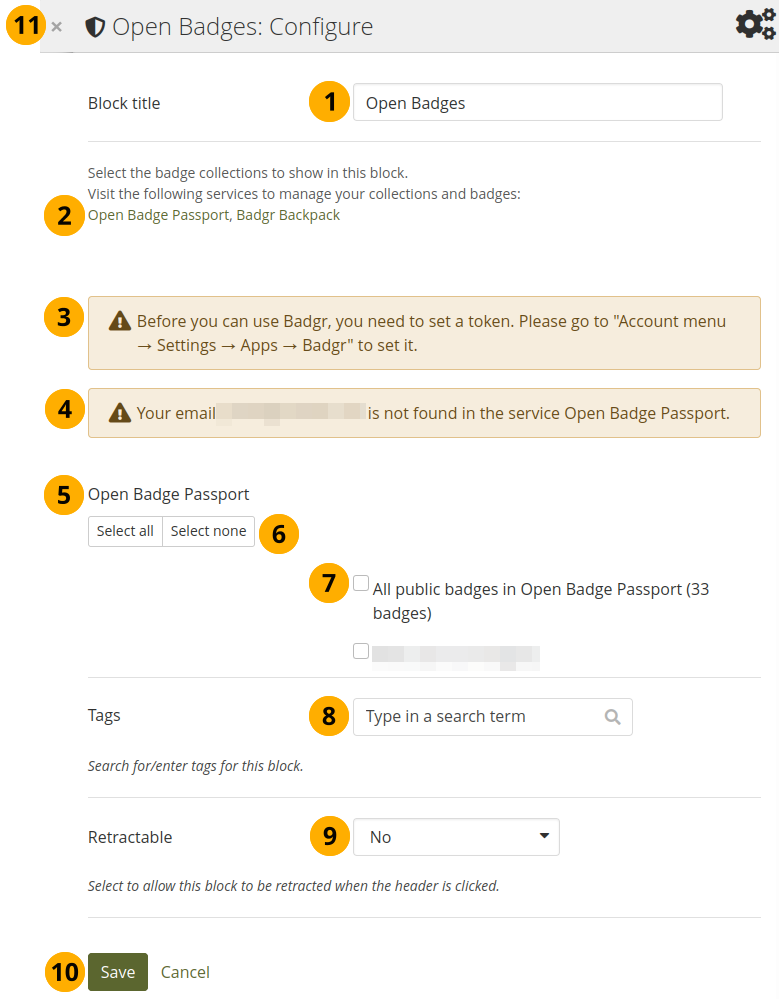
Configure the Open Badges section
Section title: Choose a title for your section.
If you do not see all your public badge collections, select the links to verify that you have made all badges publicly available that you want to see.
Note
The Mozilla Backpack was deprecated as the service does not exist any more. Badges from that Backpack cannot be displayed any more. If you are on an upgraded site and used to display Open Badges through the Mozilla Backpack, they are not displayed any more.
If you had a Mozilla Backpack, you would have received an email with all your badges latest in 2019. It is best to import them either to Badgr or the Open Badge Passport (or both) to keep using them. Once you moved your badges, you can re-add them here in the section.
If your site administrator allowed the use of Badgr, but you have not yet set a token, you are alerted to rectify that in the connected app settings.
Mahara checks the backpacks for all email addresses that are associated with your account. If it can’t find any badges to display for a particular address, it will show a notice.
Open Badge Passport: All public badge collections from your Open Badge Passport are displayed.
See also
If you have other ‘backpacks’ that contain badges, the site administrator would need to allow them in the config.php.
Use the Select all or Select none buttons to select all badge collections or to revert your selection.
You can also select individual badge collections if you prefer by ticking their checkboxes.
Tags: Enter tags for this section to find this content more easily. The tags are displayed as part of the page tags.
Collapse content: Choose whether you want to allow viewers to only display the heading of th section on a page. The options are:
No: The section and its content is displayed at all times.
Yes: Allow viewers to reduce the section to just the heading by selecting the Collapse icon keyboard_arrow_up.
Automatically collapsed: Only the heading of the section is visible, and the viewer can select the Collapsed icon keyboard_arrow_down to view its content.
Select the Save button to accept your changes, or select Cancel to leave the section’s content as it is. Remove is shown only when you place the section into the page for the first time.
You can also select the Close icon close in the top right-hand corner of the modal window to remove a new section before it is saved or to cancel any changes and leave the section content as it is.
Note
Since your badges need to be fetched from an external service, it may take a little bit until they are displayed on the page.
5.1.5.5. Course completion
quick_reference
The Course completion section requires that you have a web services connection established to a learning management system (LMS) that supports course completions. Follow the steps provided in the Plugin administration for the sectiontype ‘courseinfo’.
This functionality was developed with Moodle and Totara in mind.
5.1.5.5.1. Edit the Course completion section
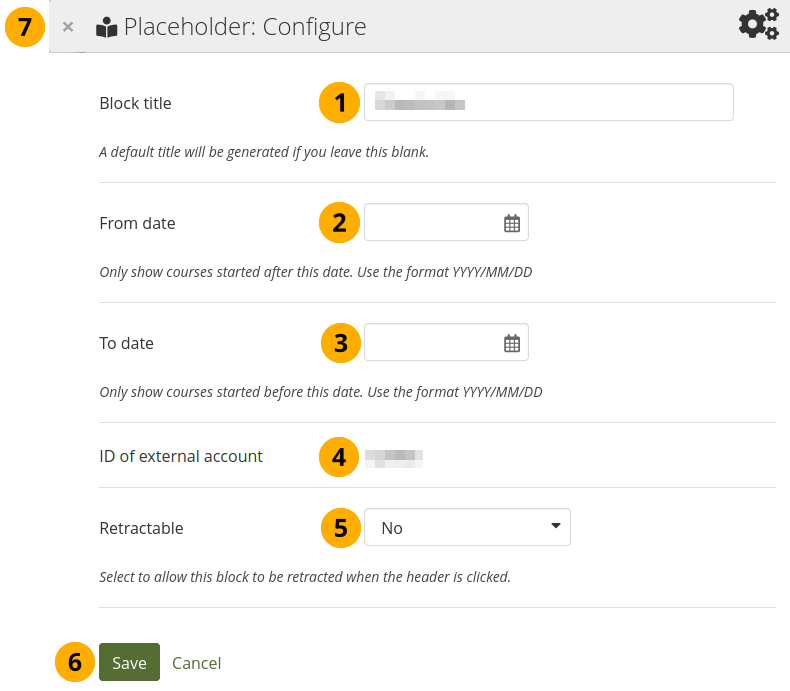
Configure the Course completion section
Section title: Choose a title for your section.
From date: Select the start date from which you want to display completion data.
To date: Select the end date up to which you want to display completion data.
ID of external account: The ID that the portfolio author has in the LMS to confirm that the correct records are displayed.
Collapse content: Choose whether you want to allow viewers to only display the heading of th section on a page. The options are:
No: The section and its content is displayed at all times.
Yes: Allow viewers to reduce the section to just the heading by selecting the Collapse icon keyboard_arrow_up.
Automatically collapsed: Only the heading of the section is visible, and the viewer can select the Collapsed icon keyboard_arrow_down to view its content.
Select the Save button to accept your changes, or select Cancel to leave the section’s content as it is. Remove is shown only when you place the section into the page for the first time.
You can also select the Close icon close in the top right-hand corner of the modal window to remove a new section before it is saved or to cancel any changes and leave the section content as it is.
5.1.5.5.2. View the Course completion section on a page
When the section is placed on a page, it will look like the following screenshot.
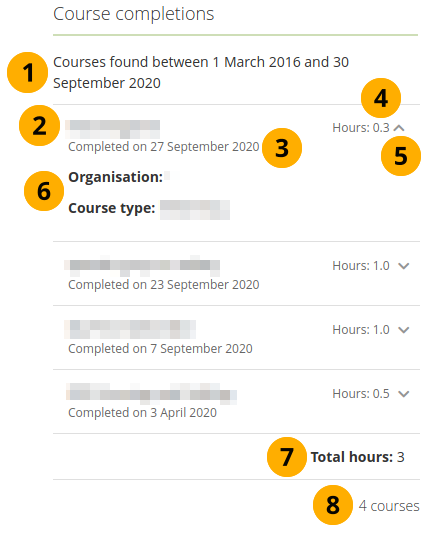
Display of the Course completion section in a page
The time frame for which the course completion data is gathered.
The title of the course.
The date when the course was completed.
The number of hours associated with the course.
Select the Down arrow icon keyboard_arrow_down to show more information. Use the Up arrow icon keyboard_arrow_up to hide the additional information.
For example, you can display the organisation and the course type in the additional information, depending on how the web services are configured.
Total hours: The total number of hours over the reporting time frame.
The number of courses that are included in this report.
5.1.5.5.3. Quick edit the Course completion section
When you are in ‘Display’ mode of a page, you can quickly edit the section content without entering ‘Edit’ mode, thus preventing that you accidentally change the page layout.
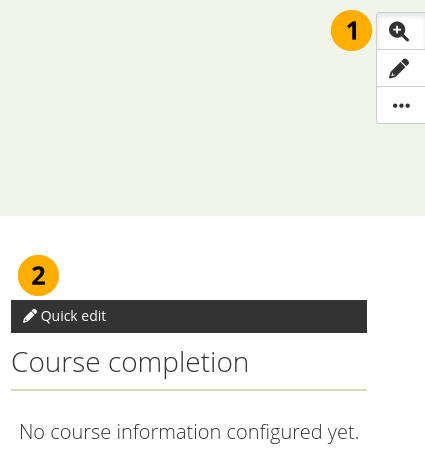
Enter ‘Quick edit’ mode for the Course completion section
Select the Details button . That enables the Quick edit mode for the sections.
Select the Quick edit button for the section to update its content.