
5.1.2. Journals
You can embed content from your journals in various ways in a page:
display an entire journal
display only one journal entry
show the latest journal entries
display journal entries with a specific tag
You must create at least one journal in order to see anything in this section.
Warning
You can allow the copying of your journal (entries). Choose this option wisely because once someone copied your journal content into their portfolio, it looks as if they had written the journal entries. This could lead to plagiarism. However, it can be used very nicely to create templates and to scaffold learning.
Journals exist in all areas of Mahara:
Personal portfolio
Groups
Institution level
Site level
You can display journals or journal entries in these different contexts the following way:
Personal journals: You can include personal journals and journal entries in your own portfolios and in group portfolios. If somebody else changes the section configuration in a group portfolio, they will not be able to choose your journals or journal entries though. Only you can place them there.
Group journals: You can display group journals and entries only in the group in which they were created.
Institution journals: An institution’s journals are only available for inclusion in pages for that institution.
Site journals: You can add site journals only to site portfolios.
5.1.2.1. Journal
book_5
Display an entire journal on your portfolio page.
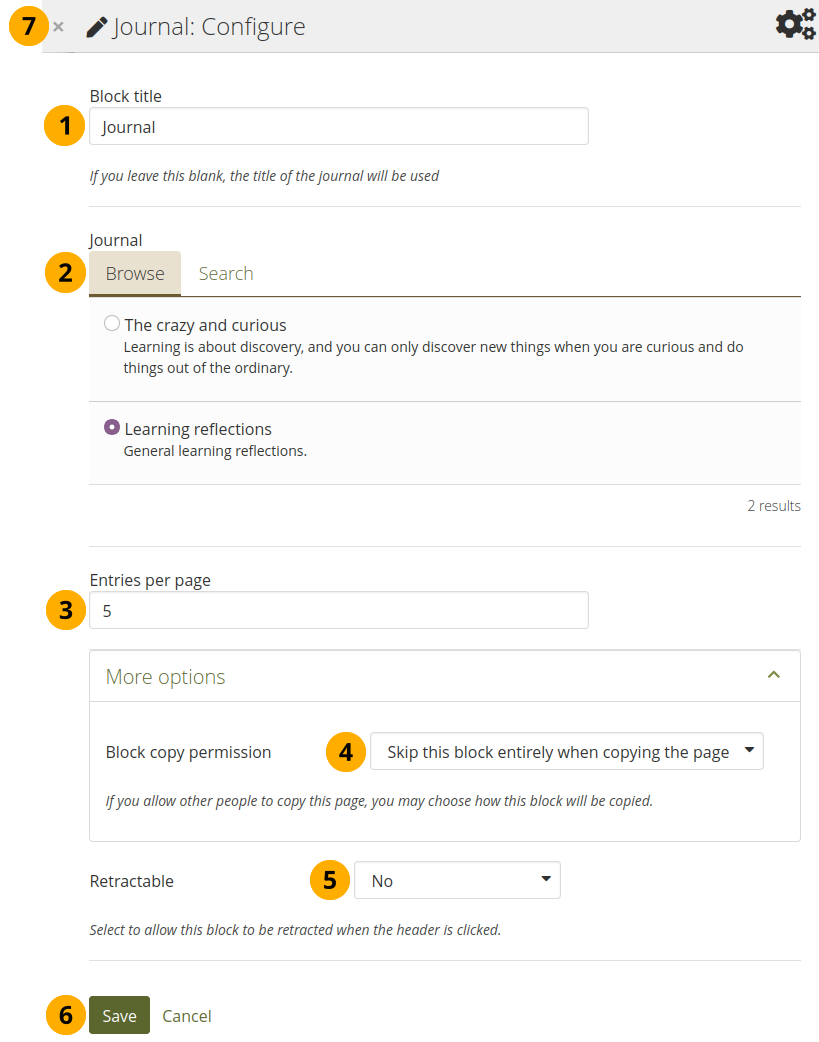
Configure the Journal section
Section title: The title for the section is chosen automatically from the title of the journal unless you provide a different one.
Journal: Select the journal you wish to display. If you have many journals, you can also search for the one you want to use.
Note
The search is performed in the title, description, and tags.
Entries per page: Decide how many entries you want to display. Entries beyond this number are accessible via a navigation bar.
Section copy permissions: You decide what shall happen with this section when you allow others to copy your page. The options are:
Skip this section entirely when copying the page
Others may display your journal in their page
Others will get their own copy of your journal
Collapse content: Choose whether you want to allow viewers to only display the heading of th section on a page. The options are:
No: The section and its content is displayed at all times.
Yes: Allow viewers to reduce the section to just the heading by selecting the Collapse icon keyboard_arrow_up.
Automatically collapsed: Only the heading of the section is visible, and the viewer can select the Collapsed icon keyboard_arrow_down to view its content.
Select the Save button to accept your changes, or select Cancel to leave the section’s content as it is. Remove is shown only when you place the section into the page for the first time.
You can also select the Close icon close in the top right-hand corner of the modal window to remove a new section before it is saved or to cancel any changes and leave the section content as it is.
Note
If you share the page publicly in which you make an entire journal visible, your journal receives an RSS feed address to which your readers can subscribe in their favorite RSS readers.
Once you have included the Journal section into a page, you can create a new journal entry directly from that section when you are in the Edit mode for the page. When you select the New entry button, you will be taken to your journal and a new entry is started for you. It is then added to the journal automatically.
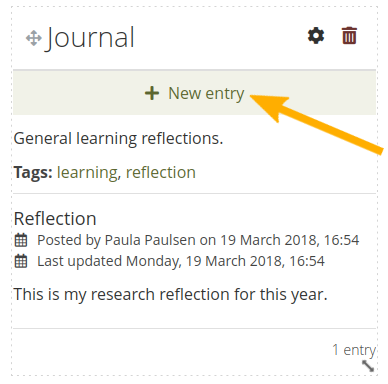
Create a new journal entry directly from the Entire journal section
5.1.2.2. Journal entry
book_5
Display one journal entry on your portfolio page.
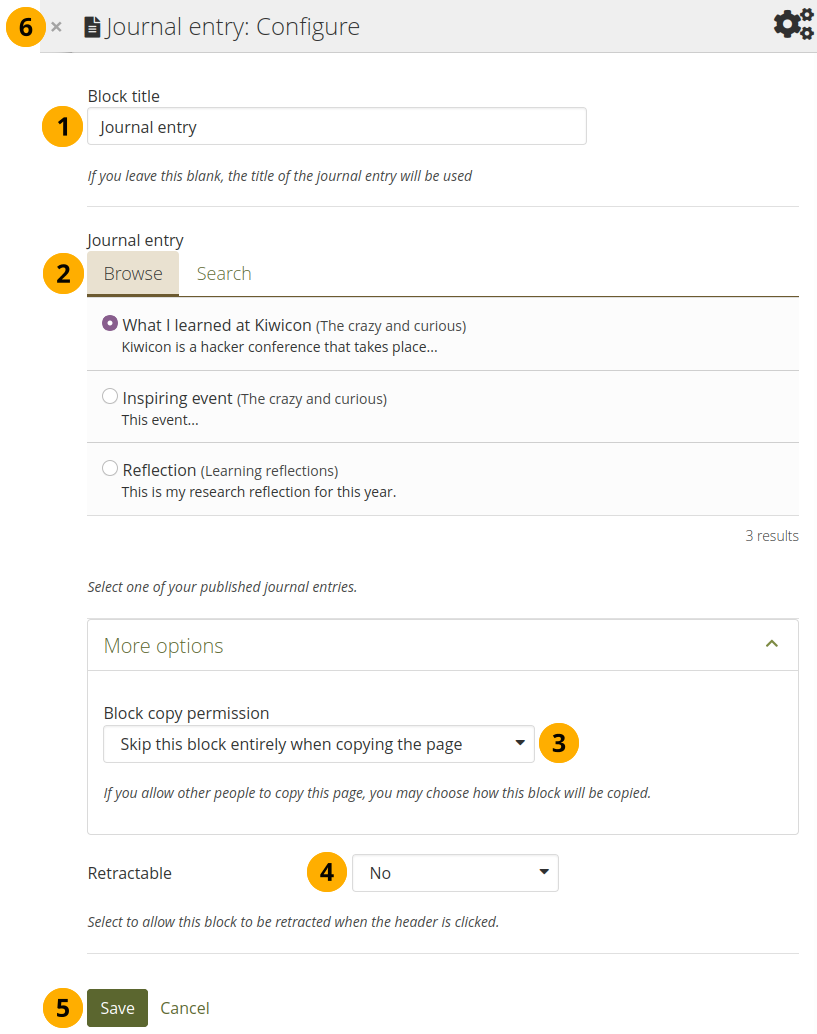
Configure the Journal entry section
Section title: The title of the journal entry is chosen automatically unless you provide a different one.
Journal entry: Select the journal entry you wish to display. If you have many, you can also search for the one you want to use. You always also see the title of the journal in which the entry appears.
Note
The search is performed in the title, description, and tags.
Section copy permissions: You decide what shall happen with this section when you allow others to copy your page. Options are:
Skip this section entirely when copying the page
Others may display your journal entry in their page
Others will get their own copy of your journal entry
Collapse content: Choose whether you want to allow viewers to only display the heading of th section on a page. The options are:
No: The section and its content is displayed at all times.
Yes: Allow viewers to reduce the section to just the heading by selecting the Collapse icon keyboard_arrow_up.
Automatically collapsed: Only the heading of the section is visible, and the viewer can select the Collapsed icon keyboard_arrow_down to view its content.
Select the Save button to accept your changes, or select Cancel to leave the section’s content as it is. Remove is shown only when you place the section into the page for the first time.
You can also select the Close icon close in the top right-hand corner of the modal window to remove a new section before it is saved or to cancel any changes and leave the section content as it is.
5.1.2.3. Recent journal entries
book_5
Display recent journal entries across all your journals on your portfolio page. You can use this section also in group, institution and site pages.
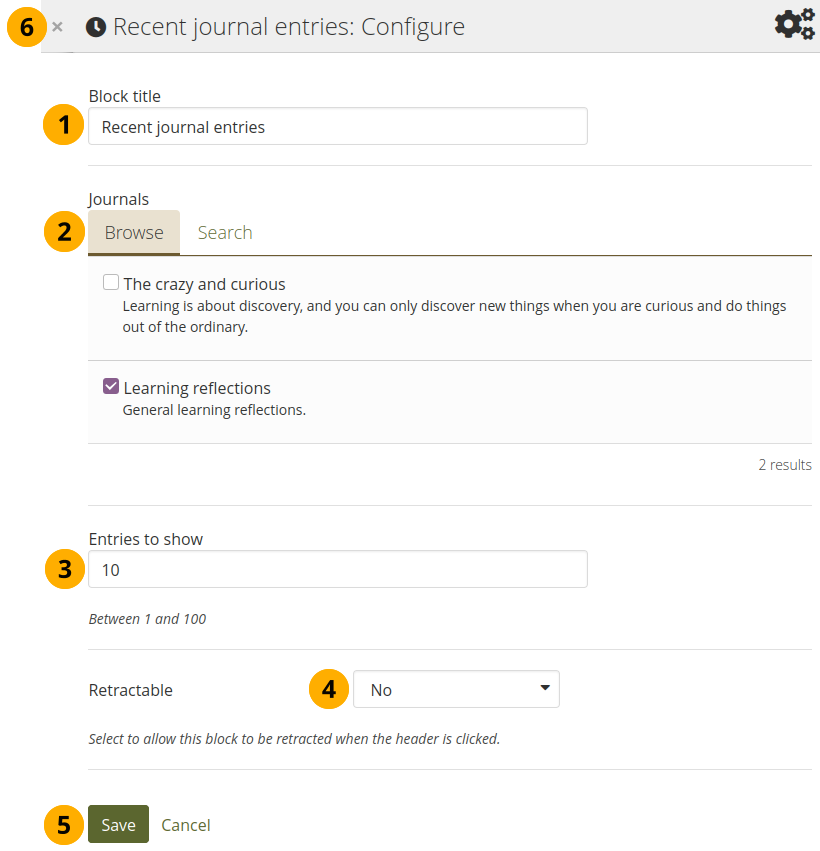
Configure the Recent journal entries section
Section title: Choose a title for your section.
Journals: Select the journal(s) from which you wish to display the latest entries. If you have many journals, you can also search for the one(s) you want to use.
Note
The search is performed in the title, description, and tags.
Entries to show: Decide how many entries you want to display.
Collapse content: Choose whether you want to allow viewers to only display the heading of th section on a page. The options are:
No: The section and its content is displayed at all times.
Yes: Allow viewers to reduce the section to just the heading by selecting the Collapse icon keyboard_arrow_up.
Automatically collapsed: Only the heading of the section is visible, and the viewer can select the Collapsed icon keyboard_arrow_down to view its content.
Select the Save button to accept your changes, or select Cancel to leave the section’s content as it is. Remove is shown only when you place the section into the page for the first time.
You can also select the Close icon close in the top right-hand corner of the modal window to remove a new section before it is saved or to cancel any changes and leave the section content as it is.
Note
If you have multiple journals, you can display recent entries from all of them.
Once you included the Recent journal entries section into a page, you can create a new journal entry directly from that section when you are in Edit mode for the page. When you select the New entry button, you will be taken to your journal, and a new entry is started for you. It is then added to the journal automatically.
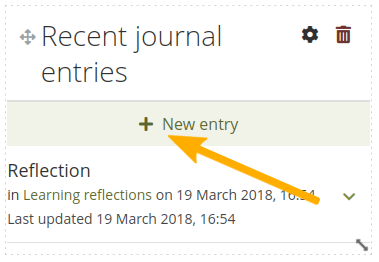
Create a new journal entry directly from the Recent journal entries section - one journal only
If you enabled multiple journals and selected more than one for which to display recent journal entries, you will see a slightly different display.

Create a new journal entry directly from the Recent journal entries section - multiple journals available
Choose the journal to which to add your entry from the drop-down menu.
Select the Add button to create your new entry.
5.1.2.4. Tagged journal entries
book_5
Display tagged journal entries across all your journals on your portfolio page.
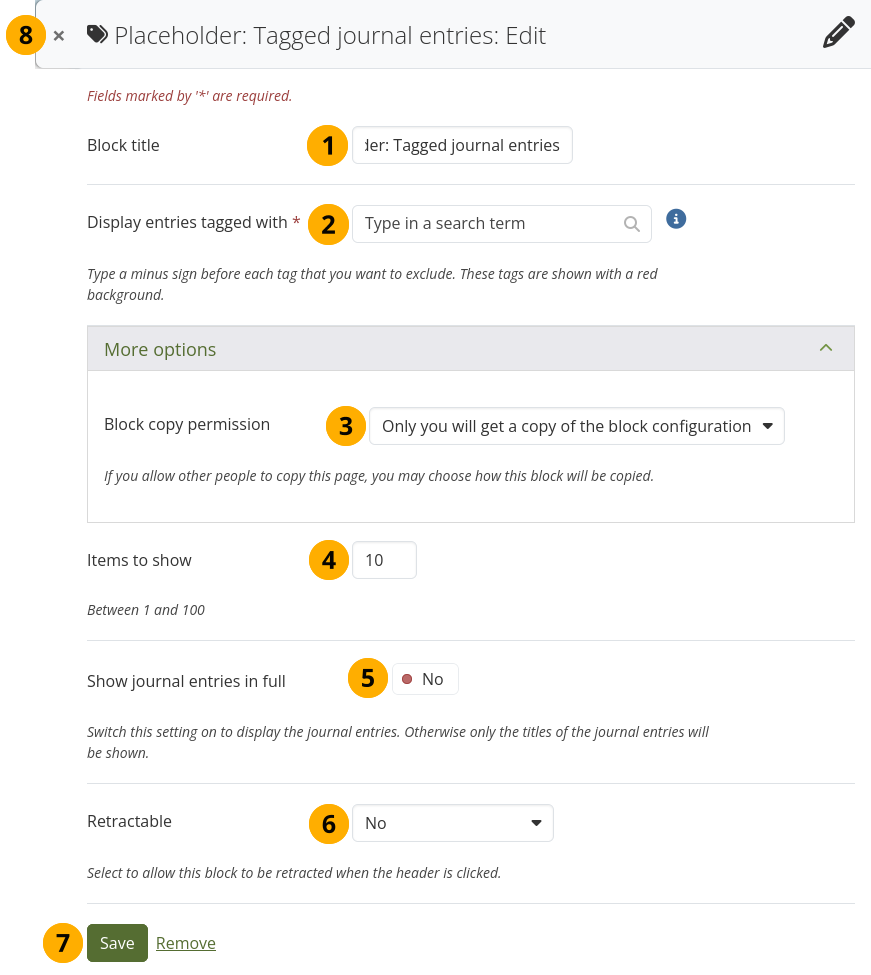
Configure the Tagged journal entries section
Section title: Choose a title for your section.
Display entries tagged with: Choose the tags that you want to use to filter all your journal entries for display. Only tags you used on journal entries are available. You can include or exclude tags. See below for more information.
Section copy permissions: You decide what shall happen with this section when you allow others to copy your page. Options are:
Only you will get a copy of the section configuration
Skip this section entirely when copying the page
Others will get a copy of the section configuration: The section is copied, but not the journal entries. When the author creates journal entries with the tag(s) used in the section, they will be displayed.
Items to show: Decide how many entries you want to display.
Show journal entries in full: If you switch this option to ‘Yes’, your journal entries will be displayed. Otherwise, only their titles are shown and people need to select on them to read your entries.
Collapse content: Choose whether you want to allow viewers to only display the heading of th section on a page. The options are:
No: The section and its content is displayed at all times.
Yes: Allow viewers to reduce the section to just the heading by selecting the Collapse icon keyboard_arrow_up.
Automatically collapsed: Only the heading of the section is visible, and the viewer can select the Collapsed icon keyboard_arrow_down to view its content.
Select the Save button to accept your changes, or select Cancel to leave the section’s content as it is. Remove is shown only when you place the section into the page for the first time.
You can also select the Close icon close in the top right-hand corner of the modal window to remove a new section before it is saved or to cancel any changes and leave the section content as it is.
5.1.2.4.1. Add new tagged journal entries directly from a page
Once you have included the Tagged journal entries section into a page, you can create a new journal entry directly from that section when you are in Edit mode for the page. When you select the New entry button, you will be taken to your journal and a new entry is started for you. It is then added to the journal automatically with the tag(s) whose journal entries are displayed on the page.
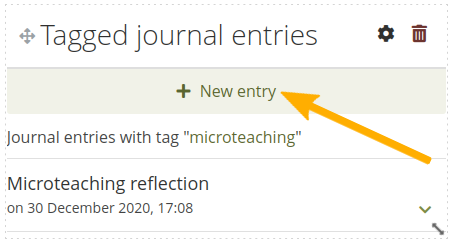
Create a new journal entry directly from the Tagged journal entries section - one journal only
If you enabled multiple journals and have a minimum of two journals, you will see a slightly different display.
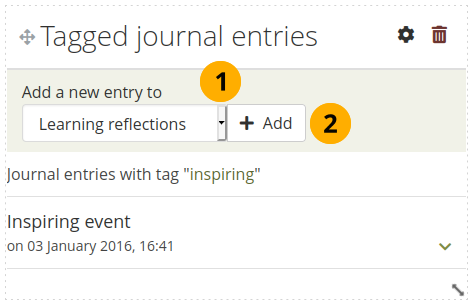
Create a new journal entry directly from the Tagged journal entries section - multiple journals available
Choose the journal to which to add your entry from the drop-down menu.
Select the Go button to create your new entry.
5.1.2.4.2. Select tags to include or exclude
When you want to choose which tags to use in your section, you can select multiple tags to include or exclude. That way you can be very flexible in which entries to display in your section and which ones to leave out. You must have tagged your journal entries beforehand. If you haven’t done that, please go to your journal entries and tag them. You can find them under Reusable content 🠆 Journals.
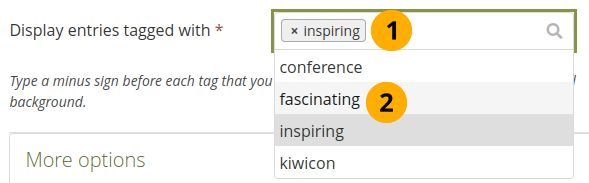
Display all the tags that you used on journal entries
Select in the text field for the tag entries. You can start typing the tag that you are looking for if you know it. The result list that you see underneath gets shorter based on what you type. If you want to exclude a tag, type the minus sign and then the tag.
In the tag result list, select the tag that you want to include. If you want to exclude a tag, type the minus sign and then select the tag.
Once the tags are in the field, you can see directly which ones are included and which ones are excluded.
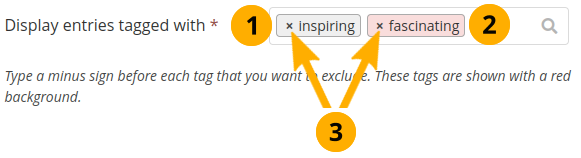
A selection of tags for the tagged journal entries
Tags that your journal entries must have are displayed in light grey.
Tags that are excluded from your journal entries are displayed in red.
You can remove any tag by selecting the x to the left of it.
Note
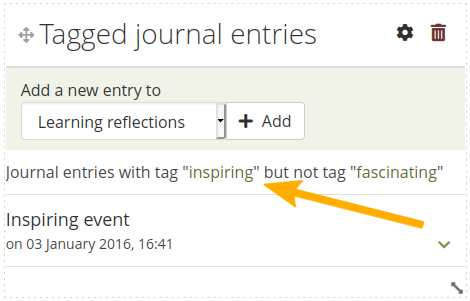
When you display your page that has a tagged journal entries section, you see which tags are used to filter your journal entries. For example: Journal entries with tag ‘learning’ but not tag ‘conference’.